
If you want to use Microsoft to access Clara with that account, this article will guide you step by step through the login process.
First, make sure you:
- Have an active Microsoft 365 account (associated with your company).
- Use an up-to-date browser.
- Are in contact with your IT team in case you need additional assistance.
Scenario 1: Approval Request
What’s happening?
If you try to log in with Microsoft and see a screen like this indicating that you need approval to continue:
%2010.34.59%20a.%20m..png)
Why is this happening?
Your Microsoft account administrator needs to approve Clara's access to certain basic data (name, email, etc.).
Steps to resolve it:
- Click “Request approval” and add a reason.
- Ask your IT team or Microsoft account administrator for support.
- As the IT team or Microsoft administrator, log in to the Microsoft Entra Admin Center as a Privileged Role Administrator.
- Go to Identity > Applications > Enterprise applications.
- Select the “Admin consent requests” section.
- Approve Clara’s access by clicking Review permission and consent → Accept.
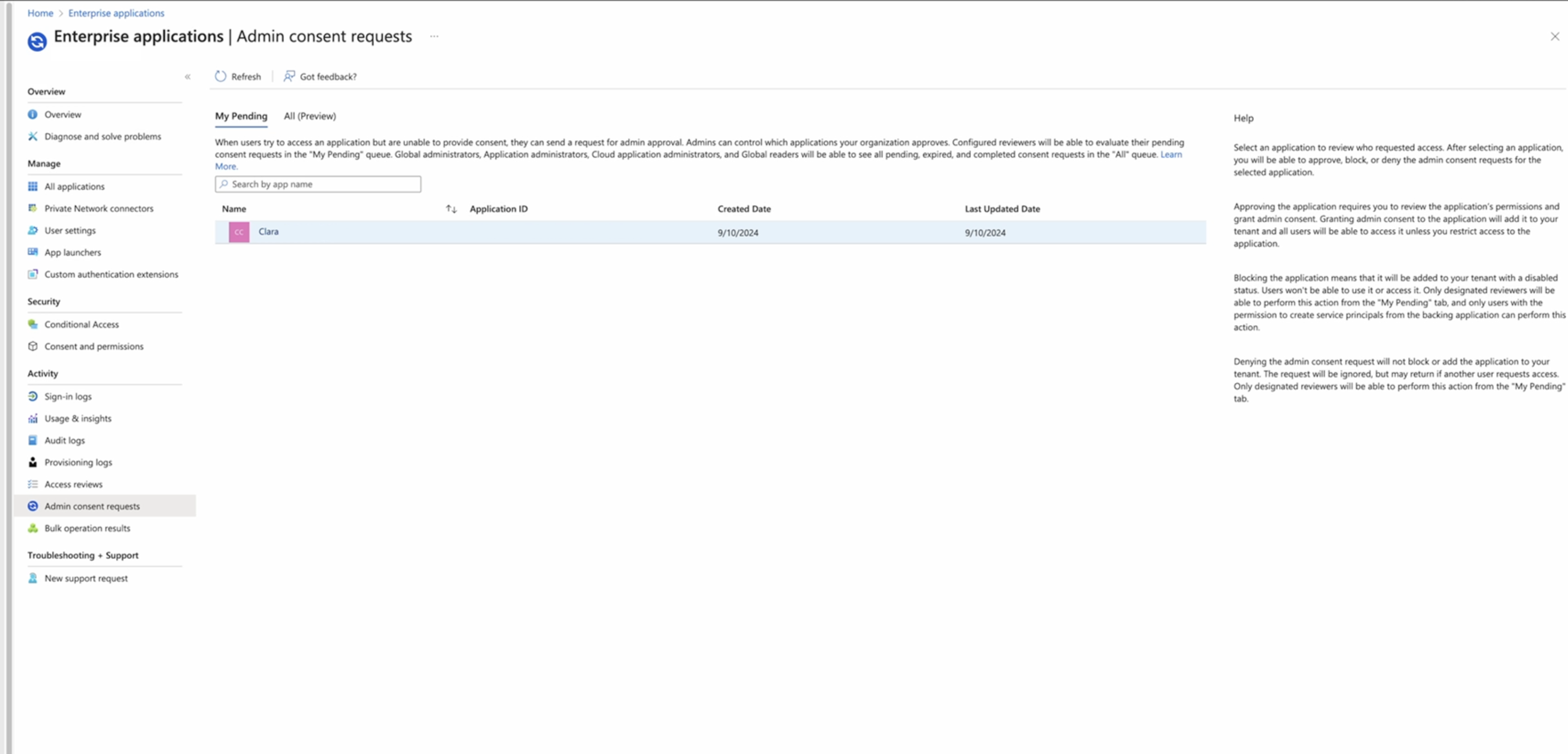
Once approved, you will be able to log in without any issues, and no other user will need to repeat this process.
Scenario 2: Admin Approval Required
What’s happening?
If you try to log in with Microsoft and see a screen like this indicating that an admin is required to proceed:
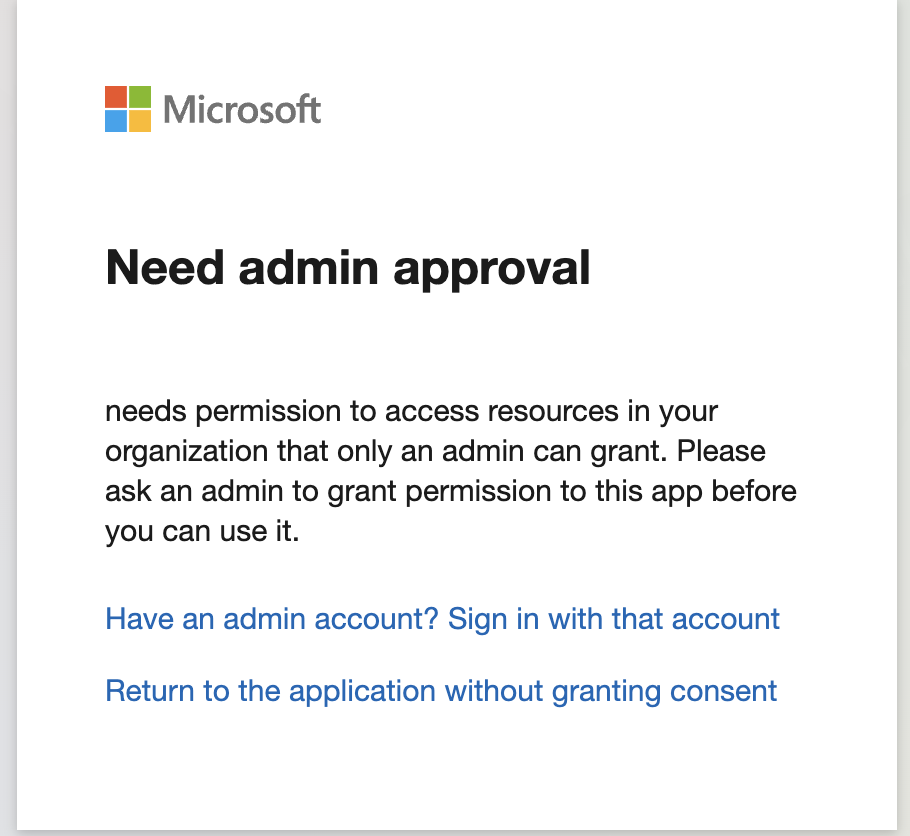
Your organization does not allow users to request approvals. An administrator is required to grant permissions directly.
Steps to resolve it:
- Ask your IT team or Microsoft account administrator for support.
- Share the screenshot with the error message.
- The IT team or Microsoft administrator needs to log in to Clara and authorize Clara to sign in with Microsoft on behalf of the organization.
📌 Final Reminder
This process only needs to be completed once per organization. After the administrator grants access, all other users will be able to sign in with their Microsoft 365 accounts without issues.
Comments
Please sign in to leave a comment.